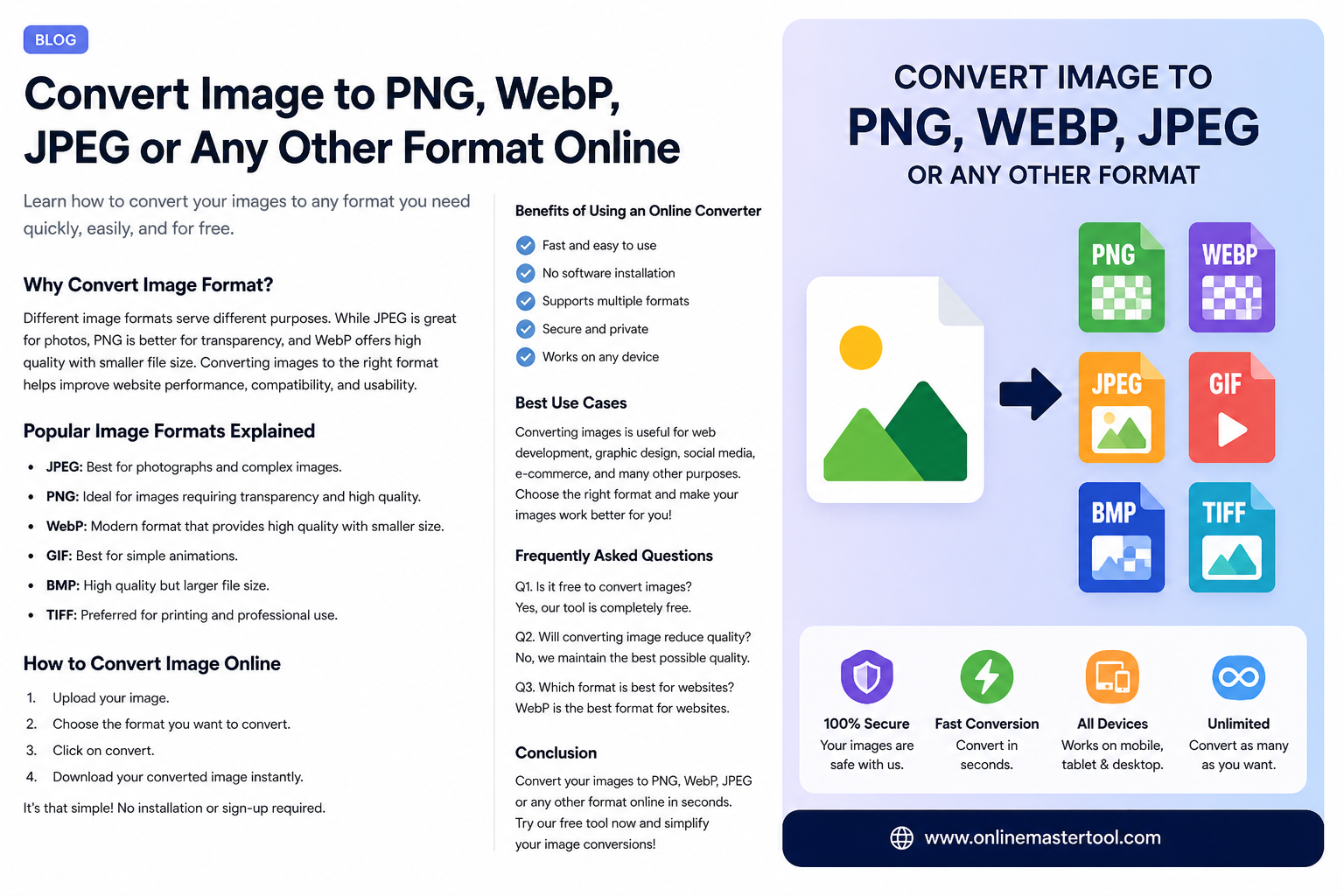
If you’ve ever tried to upload an image and got an error like “file format not supported,” you already know how frustrating it can be. Whether you’re working on a website, sending files, or posting on social media, choosing the right image format is important.
The good news is — you can easily convert image to PNG, WebP, JPG, or any other format online without installing any software.
In this guide, you’ll learn how image conversion works, which format to choose, and how to convert images instantly using a free tool.
Why Image Format Conversion is Important
Different image formats serve different purposes. Using the wrong format can increase file size, reduce quality, or cause compatibility issues.
Benefits of converting image formats:
- Reduce image file size
- Improve website speed (SEO boost)
- Ensure compatibility across devices
- Maintain better image quality
For example, a PNG image might look great but be too heavy, while a WebP file can give similar quality at a much smaller size.
Popular Image Formats Explained
Before converting, it’s important to understand the difference between formats.
📌 JPG (JPEG)
- Best for photos
- Smaller file size
- Slight quality loss
📌 PNG
- High quality
- Supports transparency
- Larger file size
📌 WebP
- Modern format
- High quality + smaller size
- Best for websites
📌 Other Formats
- GIF → animations
- BMP → uncompressed images
- TIFF → professional use
Choosing the right format can significantly improve performance.
How to Convert Image Online (Step-by-Step)
You don’t need Photoshop or any heavy software. You can use a free online tool like:
👉 https://www.onlinemastertool.com/convert-image
Steps:
- Upload your image file
- Select the format (PNG, JPG, WebP, etc.)
- Click convert
- Download the converted image
That’s it — your image will be ready in seconds.
Convert Image Without Losing Quality
One common concern is quality loss during conversion. But modern tools use smart algorithms to keep the image sharp while changing the format.
👉 Pro tip:
- Always convert from high-quality original files
- Avoid converting multiple times
Use Other Tools for Best Results
For maximum optimization, combine image conversion with other tools.
Compress Image (reduce file size)
👉 https://www.onlinemastertool.com/compress-image
👉 Helps reduce file size without losing quality
Resize Image (adjust dimensions)
👉 https://www.onlinemastertool.com/resize-image
👉 Perfect for websites and social media
Crop Image (remove unwanted parts)
👉 https://www.onlinemastertool.com/crop-image
👉 Focus only on important areas
Which Format Should You Choose?
Here’s a quick guide:
- Website images → WebP (best choice)
- Photography → JPG
- Logos / graphics → PNG
👉 Using the correct format improves SEO and loading speed.
Pro Tips for Image Optimization
- Keep image size under 200KB
- Use WebP for faster websites
- Avoid uploading large images directly
- Always convert before uploading
Frequently Asked Questions
1. Can I convert image formats for free?
Yes, you can use free online tools without any cost.
2. Does converting image reduce quality?
Not significantly, if done properly using a good tool.
3. Which format is best for websites?
WebP is the best for performance and SEO.
4. Can I convert PNG to JPG or WebP?
Yes, you can convert between all major formats easily.
Final Thoughts
Image format conversion is a simple but powerful way to improve your website performance and file usability. By choosing the right format and optimizing your images, you can boost SEO, reduce loading time, and improve user experience.
If you want a quick and easy solution, try this free tool:
👉 https://www.onlinemastertool.com/convert-image
Combine it with compression and resizing tools for the best results.